When the Android driver is properly installed, Device Manager (Start->run:devmgmt.msc) on your computer should look like this when your phone is attached:
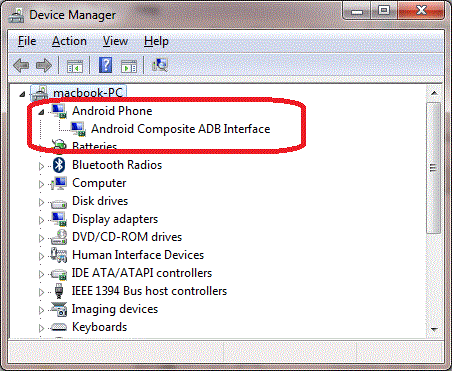
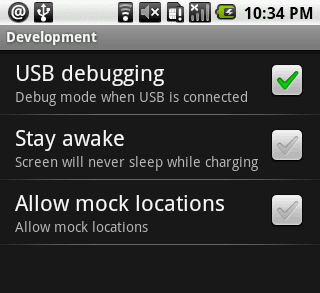
In other words "Android ADB Interface" must be listed without error. If you do not see the "Android ADB Interface" device, try to make sure USB debugging is checked on your Android phone under Settings->Applications->Development or Settings->Developer (on Android 4.2.2 or above the developer options may be hidden, go to Settings->About Phone and tap "Build Number" 4 times to reveal it. If you already have PdaNet+ installed on the phone side, enable USB mode awill bring up the USB debugging setting if necessary):
If the computer side still does not install the "ADB Interface" driver when you plug-in your phone (PdaNet installation stucked at "please connect your phone"), there are a couple of areas you can look into:
- When you have Device Manager open and it does not do a refresh when you plug-in your phone, then it is possible your USB cable is charge-only and not data-capable. You need to change to a different USB cable.
- With your phone connected, there should be a USB notification on the phone side. Open it and you should see two or more USB options (such as Mass Storage, Media Device, Camera (PTP), Charge Only etc.). Try to select each (start with Camera/PTP/Picures/Transfer Images) see if any one of them triggers the "ADB Interface" driver on the computer side. For example some Samsung phones or LG phones will require you to select "Camera (PTP)" for USB debugging to work.
- With your phone connected, power off the phone and power back on. See if the computer side installs the ADB driver.
- If USB connection does work for you before but is no longer recognized on the same computer, try to power off your computer and power back on and see if it helps.
Sometimes if there is a driver error on the computer side and no "ADB Interface", your system may need the official USB driver. If that is the case, install one of the following drivers on your computer first:
- Driver for LG Android Phones
- Driver from Samsung Kies
- Driver for Motorola Android Phones
- Google's USB driver list from OEM sites